OBS removes a physical green screen with its built-in Chroma Key filter. Add the filter to the camera under Filters > Effect Filters, choose the screen's color and place the replacement background below the camera in Sources. You do not need a background-removal plugin for this route.
I would fix uneven lighting before raising Similarity. An aggressive key can remove the shadowed screen and parts of your clothes or face at the same time.
Start with a camera picture that is worth keying
Get the unfiltered camera working first. Select the actual device and a supported resolution/frame-rate combination using the webcam setup guide. A black device preview is an input problem, not a green-screen setting.

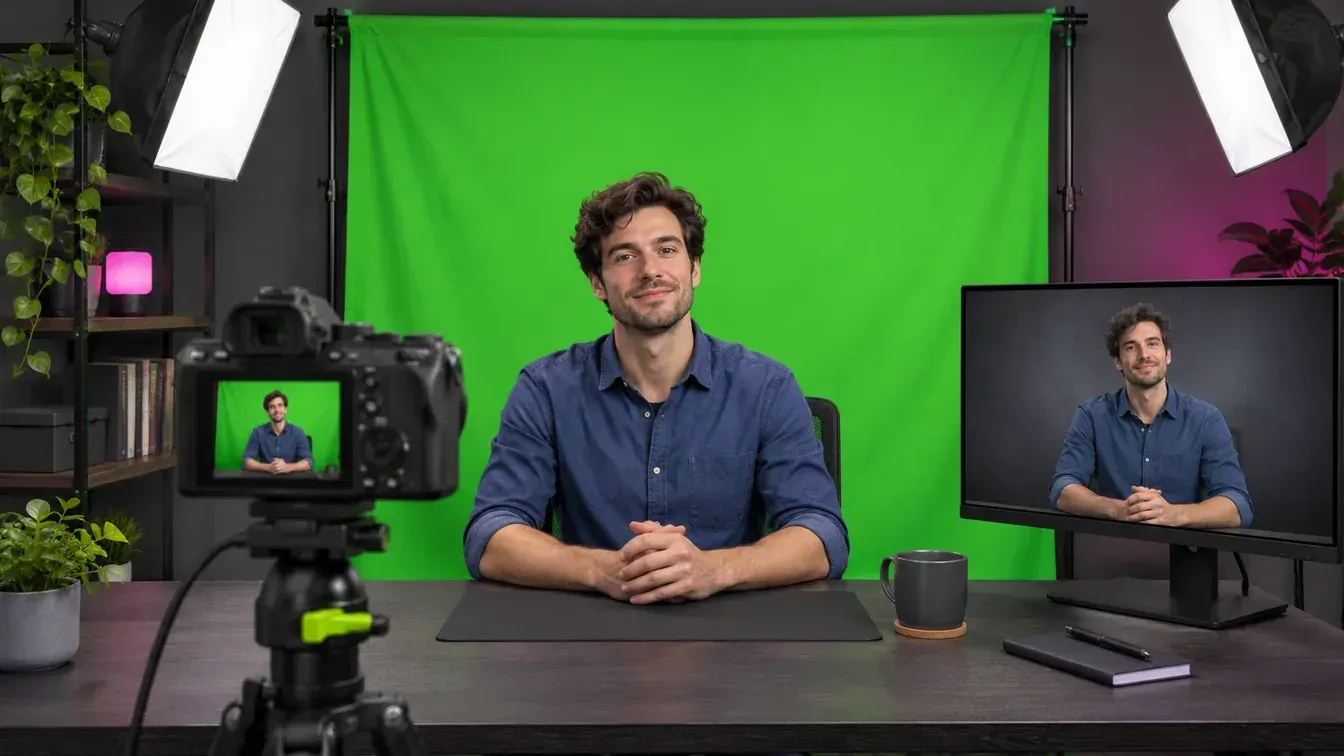
Fill the area behind the subject with a reasonably even-colored screen. Flatten prominent creases, reduce hard shadows and leave enough separation that the subject is not pressed against the backdrop. Keep the subject lit separately where possible. Do not wear the color you intend to remove.
Check the camera under the lighting you will actually use. A key adjusted in daylight can fail after the room lighting changes. Automatic exposure or white balance can also change the appearance of the backdrop during movement; use stable camera settings when the camera offers suitable controls.
Add Chroma Key to the camera
- Select the camera source in the intended scene. Right-click it and open Filters.
- Under Effect Filters, click + and choose Chroma Key. Name the filter and confirm.
- Set Key Color Type to Green for a green screen, Blue for a blue screen, or Custom Color when the actual backdrop requires another choice.
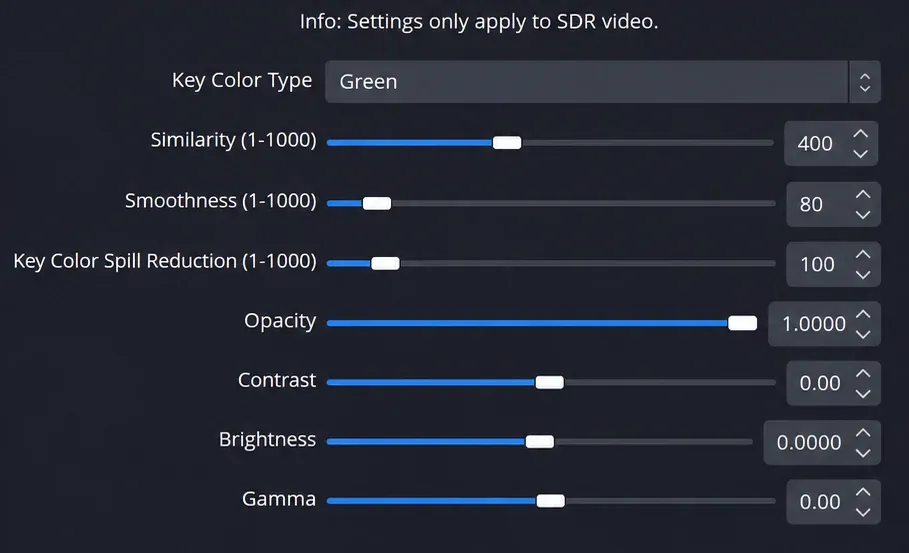
Choose the backdrop color and start with the default sliders. Watch the edge of the subject as you make adjustments. - Close Filters and add an Image, Media or other background source.
- Place that background below the camera in Sources. A source above the camera can cover it entirely.

The official Chroma Key reference confirms support on Windows, macOS and Linux. The filter guide distinguishes Chroma Key for green-screen footage from Color Key for graphics and windows. Choose the filter for the actual input rather than adding several similar keys at once.
Transparency may look black when nothing sits behind the camera. Put a plain contrasting Color Source below it temporarily so you can inspect the edge. A black preview background does not by itself mean that Chroma Key painted the screen black.
Adjust the controls in a useful order
| Control | What to watch | When to stop |
|---|---|---|
| Key Color Type / Key Color | The actual backdrop color | The chosen color represents the screen, not the subject |
| Similarity | How much background disappears | The screen is removed without holes in the subject |
| Smoothness | The transition at the silhouette | The edge softens without becoming an obvious blur |
| Key Color Spill Reduction | Green or blue tint along hair, shoulders and reflective surfaces | Spill reduces without draining wanted color |
| Opacity and tonal controls | The whole camera picture | Leave unchanged unless that separate adjustment is intended |
OBS's reference explains that higher Similarity removes pixels more aggressively, while Smoothness softens the removed edge. For an SDR camera, start with the documented defaults of 400 for Similarity, 80 for Smoothness and 100 for Spill Reduction. Adjust one control at a time while you move through the shot. If the backdrop disappears before the subject starts to break up, you have room to adjust Smoothness and spill separately.
Do not compensate for a dark crease by removing a much wider color range if that starts cutting into skin, clothing or an instrument. Improve the screen's lighting, crop the unused outer area, or simplify the shot. The OBS source guide covers removing room edges without stretching the camera.
Find the cause of the visible defect
| What you see | Likely place to investigate | Next adjustment |
|---|---|---|
| Dark or green patches remain on the screen | Uneven screen color or lighting | Light/flatten the screen, then adjust Similarity carefully |
| Parts of the subject disappear | Key includes wanted colors | Reduce Similarity; change matching clothes or the backdrop color |
| Green outline around hair | Spill and the keyed edge | Reduce reflected screen light and tune Spill Reduction |
| Whole camera is faint | Opacity or another filter | Restore intended opacity and inspect the filter chain |
| Replacement image covers everything | Source order | Move it below the camera |
| Only moving hands break up | Motion blur, lighting or an aggressive edge | Improve the input and recheck the key in motion |
Reflective objects can contain the key color even when the object itself is not green. Check glasses, polished instruments and shiny clothing. A color key has no understanding that a green reflection belongs to something you wanted to keep.
A green screen and AI removal solve different inputs
Chroma Key removes a selected color. It does not automatically recognize a person against an ordinary room. If there is no usable physical backdrop, follow the Background Removal plugin’s compatibility notes before choosing a segmentation filter.
When the plugin package fits your OBS setup, set up Background Removal and check the mask in motion.
A transparent camera in the scene also does not guarantee that the saved video contains an alpha channel. Ordinary composition records the background underneath it as part of the finished picture. Saving the subject separately with transparency is a different output task.
Select Start Recording to test the key against a light and a dark replacement. Move your hands, turn your head and hold up any reflective object you expect to show. Select Stop Recording, then open File > Show Recordings and play the clip at the camera’s intended size. Keep the filter only when the subject stays intact through that movement; use the camera guides if the remaining problem is focus, input stability or framing.