To run OBS as administrator on Windows, close OBS, find the installed OBS Studio app in Start, right-click it and choose Run as administrator. Approve the Windows UAC request or provide authorized administrator credentials. I'd try one launch first: it can help certain Game Capture problems and GPU contention, and you can check the result before making the setting permanent.
Run the installed OBS app once as administrator
Stop your recording, stream and Replay Buffer before closing OBS. Finish the launch change between sessions, since it requires reopening the application.
- Open Start and search for OBS Studio.
- Right-click the installed application result and select Run as administrator. For a desktop shortcut or EXE on Windows 11, check Show more options if the command isn't in the first menu.
- Check the application and file location shown by the Windows permission request. Continue only for the OBS copy you intended to open.
- Approve the request under your account's policy. If Windows asks for administrator credentials you don't have, use your device administrator's approved route.
- Wait for OBS to open, then select the scene and source you need to check.
Microsoft documents the Start-menu command and application-shortcut controls for Windows desktop applications. The command launches the selected program with the requested rights; it doesn't change the rights of an OBS session that was already open.
If an installation wizard appears, cancel it. You've selected a setup download rather than the installed OBS application. Running the installer as administrator doesn't establish how OBS runs afterward. Search the installed app again or locate the executable through its existing shortcut.
For OBS installed through Steam, open the actual EXE
A Steam-created desktop icon can be an Internet shortcut that opens a Steam URL. Its properties won't offer the same controls as a Windows shortcut to an executable. Open the installed files instead of changing Steam's own administrator settings.
- In your Steam Library, right-click OBS Studio and open Properties.
- Select Installed Files > Browse to open this installation's folder. Older Steam instructions call the tab Local Files.
- In the Windows installation, open
bin\64bitand locateobs64.exe, shown as an application. If extensions are hidden, the visible name may beobs64. - Right-click that application and choose Run as administrator.
Valve documents Installed Files > Browse as the route to an installed application's directory; use it so a library on another drive doesn't send you to the wrong folder. OBS also documents the Windows bin/64bit/obs64.exe executable location. You can run that OBS application as administrator without first giving the Steam client or game launcher the same rights.
Keep an existing portable setup's launch flags intact when comparing runs. In particular, --portable selects a different configuration location; dropping that flag while creating a shortcut changes more than administrator rights.
For repeated launches outside Steam, make a shortcut to that installed obs64.exe. If you want to keep launching with Steam’s Play button, open the executable’s Properties > Compatibility and select Run this program as an administrator if offered. Launch the way you intend to work and verify the current OBS log. Keep the Steam client at its normal rights.
Check the current OBS log for administrator status
Open Help > Log Files > View Current Log in the OBS session you just launched. Near the startup information, find Running as administrator:.

truemeans OBS detected administrator rights for that run.falsemeans OBS didn't detect those rights. Check that you approved the intended launch and opened the correct copy.
These are the two values written by the Windows administrator-status check in OBS. Reading the current log gives you a check inside the running application, without relying on a shortcut's shield icon or remembering whether a prompt appeared.
Use Current for this check. The previous log belongs to an earlier launch, which could have used different rights. You can view the log locally; checking administrator status doesn't require uploading it.
An administrator account and an administrator process are separate things. Under normal UAC behavior, Windows starts desktop apps with a standard token even when the signed-in account belongs to the Administrators group. The UAC consent and credential rules determine when Windows requests higher rights. Policy can change prompt behavior, so a missing prompt alone doesn't settle the question.
Decide whether administrator rights address your symptom
There are two practical reasons to try this: OBS can't capture a game that needs higher rights, or OBS is struggling to obtain GPU time while the game is running. The OBS Game Capture troubleshooting guide names games including Call of Duty and Valorant in its administrator advice. For overloaded rendering, OBS says administrator launch lets it ask Windows to reserve some GPU capacity.
OBS's Process Priority setting is a separate control. Windows process and thread priorities govern CPU scheduling; choosing a higher priority doesn't replace the administrator-token request. Keep that setting unchanged during this comparison.
For a choppy recording or stream, open View > Stats. Keep the distinction between these OBS Stats counters when choosing the next action.

| What you see | What administrator launch can tell you | What to check next |
|---|---|---|
| Game Capture stays black for a game covered by OBS's administrator advice | A one-session check tests the permissions branch. | Confirm the source points to the running game, then check the preview and an active-game recording. |
| Frames missed due to rendering lag increases while gaming | Elevated launch is one documented GPU-contention check. | If it persists, cap game FPS, reduce GPU-heavy settings or simplify the OBS scene. |
| Skipped frames due to encoding lag increases | Check rendering too; changing rights alone doesn't identify the encoder bottleneck. | Inspect encoder choice and output load rather than assuming every skipped frame has a permissions cause. |
| Dropped Frames (Network) increases or the stream disconnects | This points toward the connection to the ingest server. | Investigate stream bitrate and the network path. |
| OBS records normally under ordinary launch | There is no capture or output fault here to resolve with higher rights. | Keep the working launch method. |
OBS's connection troubleshooting instructions explain why network drops need their own investigation. A local recording can help separate that path from capture and rendering, although a simultaneous stream and recording may place a different load on the encoder. Use the encoder choice and workload checks when encoding lag is the counter that remains high.
I'd keep administrator launch only when it solves the relevant capture problem or gives a repeatable improvement in the output. There isn't a useful universal FPS percentage to apply to every game, GPU and scene.
Make one OBS shortcut request administrator rights every time
After the one-launch comparison, use one ordinary application shortcut if you need the same behavior for future sessions. This keeps the setting easy to locate and reverse.
- Locate a Windows shortcut that targets your installed OBS executable. If you need a new desktop shortcut, right-click the actual EXE in File Explorer, then choose Show more options > Send to > Desktop (create shortcut) on Windows 11.
- Right-click that desktop shortcut and open Properties.
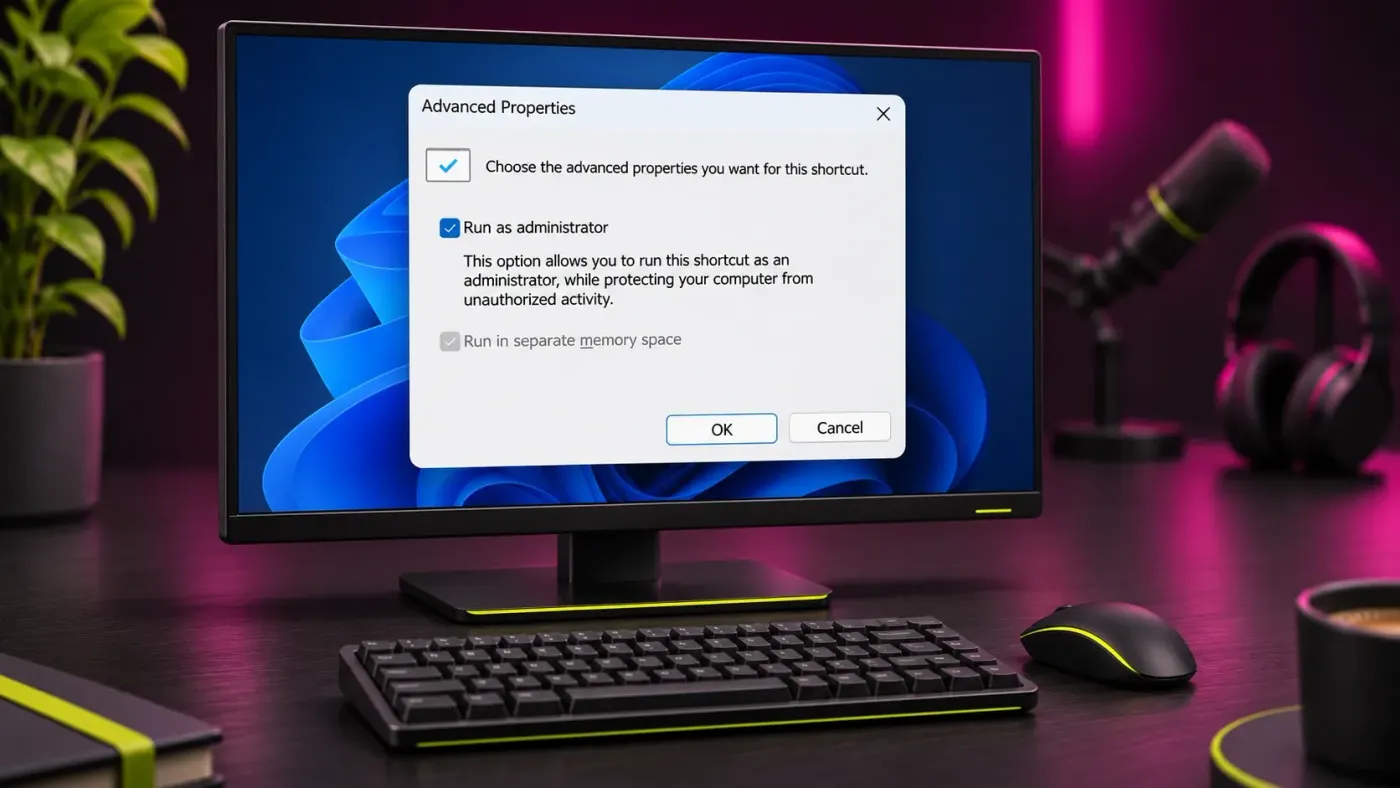
- On the Shortcut tab, select Advanced.
- Check Run as administrator, select OK, then select OK again.
- Close OBS and launch it through that shortcut. Check the current log again.
The saved shortcut setting applies each time you use that shortcut. It is persistent, unlike choosing the context-menu command for one launch. It doesn't remove UAC, start OBS at Windows login or necessarily affect a different shortcut, a launcher or another OBS installation.

Another setting with a similar name can appear under an EXE's Properties > Compatibility: Run this program as an administrator. It is separate from the shortcut checkbox. You don't need to turn on both to use the shortcut route above. Record any existing executable setting before changing it, since it matters when you return to ordinary launch.
If the command or Compatibility tab is missing
First identify what you right-clicked. An Internet shortcut, installer, folder and application are different launch targets. A Steam URL shortcut can have a Web Document tab; a normal executable shortcut has a Shortcut tab with a target path.
Use Steam's installed-files route or the installed OBS app in Start to find the application. On Windows 11, also check Show more options for the classic File Explorer menu. If the EXE's Compatibility tab is absent, try the one-time context-menu command or an ordinary executable shortcut's Shortcut > Advanced route. Neither route requires the Compatibility tab.
A disabled elevation option or rejected credential request on a managed PC belongs with the device administrator. Don't disable UAC or change account policy to get past it. A task that starts OBS automatically at login is a separate automation setup, with its own account and working-directory requirements; it isn't needed to complete this launch check.
If OBS doesn't open after approval
Don't keep starting more copies. Undo any saved launch setting you just changed, then try ordinary launch. If that opens OBS, select Help > Log Files > Show Log Files and inspect the log whose timestamp matches the failed attempt. A failure very early in startup might not produce a new log, so don't mistake an older successful run for evidence of the failed one.
For a normal nonportable Windows installation that won't open at all, press Win + R and open %APPDATA%\obs-studio\logs, the folder in OBS's log-retrieval instructions. Portable mode keeps configuration with its installation; use Show Log Files from the working ordinary launch to find that copy's folder. If you supplied a different account's credentials, its user-folder log can also differ. Keep the launch method, exact error and matching log together for support, without reinstalling or resetting scenes first.
Undo administrator launch at the place you enabled it
For a one-time launch, close OBS and reopen it normally. For a saved shortcut, return to that same shortcut's Properties > Shortcut > Advanced, clear Run as administrator, and select OK twice.
If you previously set the executable's Compatibility checkbox, clear Run this program as an administrator there and select Apply > OK. Microsoft's community support instructions for that checkbox identify this separate location. Keep UAC enabled; changing notification policy isn't a substitute for reversing an application's setting.
Close and relaunch OBS after the change, then read the current log. If it still reports administrator rights, check the shortcut you used, an existing EXE setting, any all-users setting previously configured there, or a launcher that is already running as administrator. Don't keep clearing unrelated checkboxes across every copy of OBS.
If the scenes or settings look different after you enter another administrator's credentials, check the account and launch target before rebuilding anything. Normal consent for your own administrator account doesn't automatically mean a different account. A credential prompt can instead start the app under the supplied account, and a portable flag can also change where OBS loads its configuration.
Compare the same scene, then check the saved output
Keep the game, scene, capture source, resolution and encoder settings constant for the ordinary and administrator runs. Make recordings of the same kind of active gameplay for comparable lengths; a quiet menu in one run and a busy level in the other won't isolate the launch change.
For a source using Capture specific window, launch the game first and choose its window in the source properties. The Game Capture setup instructions require the running game's window. A launcher or a hidden source won't become the correct picture because OBS has more rights; check the scene and source arrangement as well.
A fullscreen game can stop rendering when you switch away. Keep it active during the recording and inspect the saved file, or watch OBS on a second monitor. For games such as Destiny 2 and Counter-Strike 2, OBS recommends windowed or borderless fullscreen with Window Capture when Game Capture hooking isn't allowed. Higher rights aren't a reason to bypass a game's capture restrictions.
Play both recordings and inspect the section that failed before. Check sound separately, since a working picture doesn't establish the intended audio track or device. The recording and playback checks cover that final output check. If the problem persists, reproduce it in the current session and keep that session's log for the next step in the OBS troubleshooting guides.
When File Explorer runs with normal rights, Windows can block dragging files into OBS running as administrator. Open the file through OBS’s source properties instead. If an integration stops responding, repeat the test with both apps at normal rights to check for that boundary.
On macOS, open OBS Studio > Review App Permissions and check the permission for the input that is failing, such as Screen Recording or Microphone.
Keep the extra rights limited to the sessions that need them. Native plugins are libraries loaded into the OBS process, so their code also runs in that process's security context; more rights don't repair a plugin with the wrong architecture or OBS version. Check plugin compatibility before blaming a failed load on permissions. These launch instructions apply to Windows; they aren't a prescription to run OBS as root on Linux or with sudo on macOS.