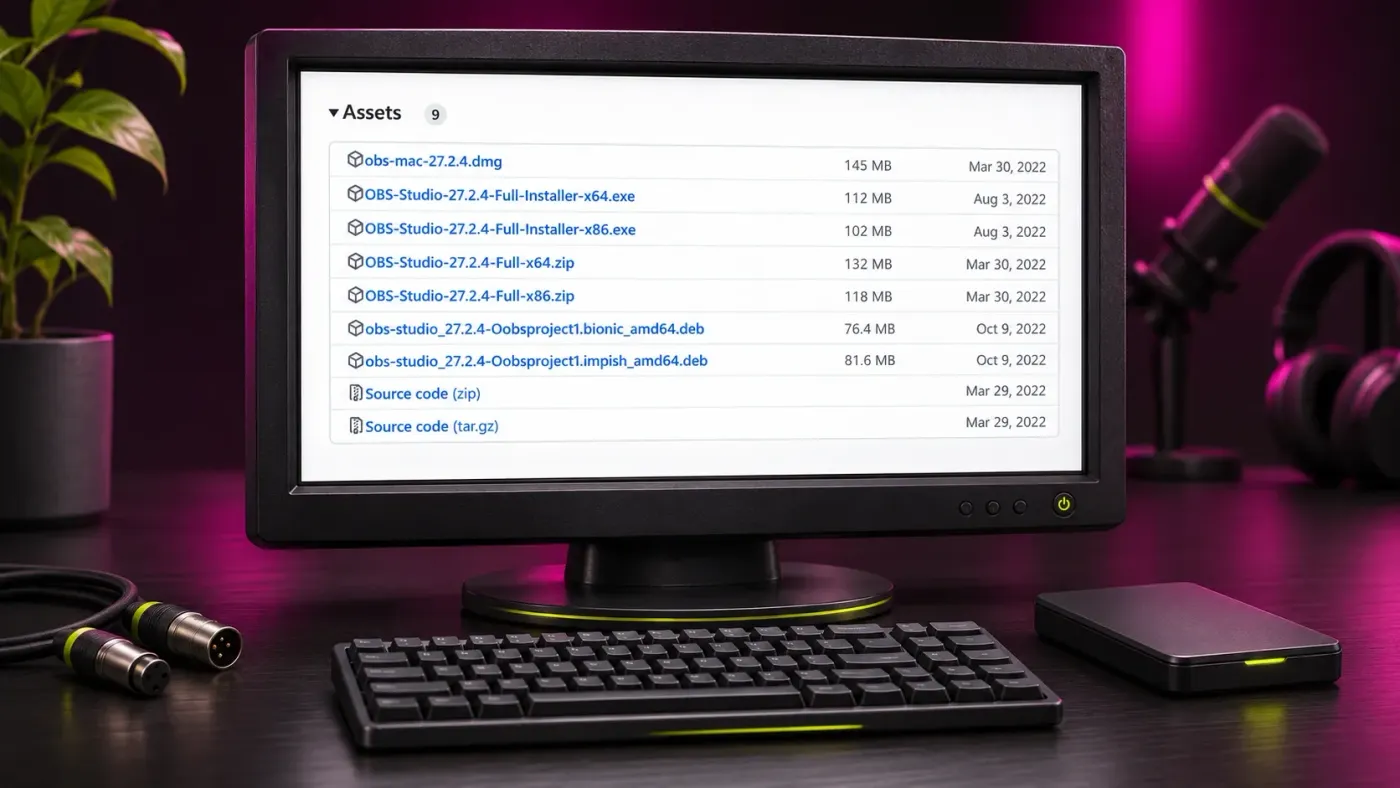
Get OBS 27.2.4 from the official OBS Project release, then choose the Windows x64, Windows x86 or Mac installer under Assets. It's an archived choice for Windows 7/8-era systems, 32-bit Windows, and macOS High Sierra or Mojave; other older Macs have different stopping points below. I'd use it for a specific compatibility requirement, because an old version number doesn't establish better recording performance.
Download the actual OBS 27.2.4 installer
- 64-bit Windows on an Intel/AMD PC:
OBS-Studio-27.2.4-Full-Installer-x64.exe. - 32-bit Windows:
OBS-Studio-27.2.4-Full-Installer-x86.exe. Thex86label means the 32-bit package here. - Mac:
obs-mac-27.2.4.dmg. This predates OBS's native Apple Silicon builds.
If OBS is already installed, protect its settings before replacing it. Keep the working installer too, and use the backup steps below before opening a different version against that setup.
- Open the release linked above. Check that the repository is obsproject/obs-studio and the release is 27.2.4. A similarly named repository owned by someone else is a separate fork.
- If you need a different package or one of the installer links fails, look under Assets below the release notes. The official expanded Assets panel also shows the filenames directly.
- Choose the file for the installed operating system and architecture from the list below. Don't click a source-code archive expecting a desktop installer.
- Save the installer locally. Finish any recording and close OBS before running setup; the 27.2.4 installer checks for an existing OBS process and files held open by other applications.
For a manual Windows installation, open the matching Full-Installer EXE and follow its setup prompts, checking the destination before continuing. For the Mac disk image, open the DMG and drag OBS to Applications, as the OBS Mac installation instructions describe. Preserve an existing working app and configuration first; accepting a replacement is a version change.

The release also offers Full-x64.zip and Full-x86.zip application packages, plus Linux DEBs. An application ZIP is different from GitHub's Source code (zip). Keep the complete extracted application tree together; copying only its EXE won't reproduce the package.
The 27.2.4 release was published on March 30, 2022. Some individual assets carry later upload dates, so an August timestamp beside an installer isn't proof that you've opened the wrong release. Check the owner, release tag and exact filename together.
Choose an older build by OS, then architecture
Check the installed operating system, not just the age or processor of the computer. A 64-bit-capable CPU can have a 32-bit Windows installation. Microsoft's Windows architecture instructions identify System type; on Windows 10/11, look in Settings > System > About.
The Mac choices follow the OBS previous-versions table; Windows and Linux release boundaries are linked below. These archived builds don't guarantee that a particular GPU, driver, capture device or scene can produce the output you want. OBS makes the same distinction in its hardware requirements: being able to run the application doesn't establish recording capacity.
| Installed system | Archived OBS choice | Boundary to check |
|---|---|---|
| Windows 7 SP1, Windows 8 or 8.1 | 27.2.4 | OBS 28 dropped the Windows 7/8 family. Runtime and graphics requirements still apply. |
| 32-bit Windows, including a 32-bit Windows 10 installation | 27.2.4 x86 | OBS 28 dropped all 32-bit operating systems. An x64 installer cannot run on 32-bit Windows. |
| macOS 10.13 High Sierra / 10.14 Mojave | 27.2.4 | Named in OBS's previous-Mac-versions table. |
| macOS 10.15 Catalina | 29.0.2 | Use the specific Mac build named in that table. |
| macOS 11 Big Sur | 31.0.4 | A newer compatible choice than 27.2.4 for this OS. |
| macOS 12 Monterey | 32.1.2, matching the Mac's processor | The whole 32.2.x line fails to launch on Monterey. |
| macOS 10.12 Sierra / 10.11 El Capitan / 10.10 Yosemite | 24.0.6 / 21.1.1 / 20.1.0 respectively | These systems need older builds than 27.2.4. |
| Ubuntu 18.04, amd64 | 27.2.4 Bionic DEB | OBS 28 removed Ubuntu 18.04 support; match the exact distribution package. |
| Ubuntu 22.04, x86_64 | 30.2.3 Ubuntu 22.04 DEB | OBS 31 removed Ubuntu 22.04 support. |
The OBS 28 Qt 6 transition establishes the older Windows, Ubuntu 18.04 and 32-bit cutoffs. It doesn't mean that every newer computer should use 28, or that a working newer installation needs to return to 27.
Mac: match the exact macOS release and processor
The older-Mac entries above come from the OBS previous-versions table, which identifies those builds as no longer supported. Its recommended path is to update macOS when the hardware and required applications allow it. Use that table for the legacy stopping points, then check the actual release notes when moving to a newer branch.
For Monterey, OBS 32.2.2 explicitly directs users to 32.1.2. Moving back only to 32.2.1 or 32.2.0 won't solve that OS boundary.
Open Apple menu > About This Mac. Apple explains that Chip identifies Apple silicon, while Processor identifies an Intel Mac. Where a release offers separate Apple and Intel DMGs, choose the matching one and check the same architecture for every required plugin. OBS 28 introduced native Apple Silicon builds; 27.2.4 isn't a native alternative. After installation, use the Mac setup and permissions guide to check the capture path.
Linux: an old DEB isn't a universal Linux installer
The 27.2.4 release includes obs-studio_27.2.4-0obsproject1.bionic_amd64.deb. Bionic is Ubuntu 18.04; don't choose that package merely because another distribution also accepts DEB files.
For Ubuntu 22.04, the official 30.2.3 release includes OBS-Studio-30.2.3-Ubuntu-22.04-x86_64.deb. OBS 31 removed support for Ubuntu 22.04; OBS 33 dropped Ubuntu 24.04 from the official native build. The Linux setup guide explains the separate Flatpak route.
Read the package manager's dependency result before accepting a change. If it needs incompatible libraries or would remove required software, stop and reconsider the OS/package pairing. Switching to Flatpak is a separate packaging decision with its own runtime and plugin compatibility; it doesn't establish that an arbitrary archived build will work on the host. General install commands also don't necessarily select version 27.2.4.
If the installer or launch fails, use the error to choose the next step
A failed download, an unsupported OS and a missing runtime are different failures. If the asset list won't appear, use the official expanded panel above. If setup says the package isn't compatible with your system, recheck x86 versus x64 and the OS boundary before downloading again.
On Windows, an error naming MSVCP140.dll, MSVCP140_1.dll or VCRUNTIME140.dll points toward the Visual C++ runtime dependency. The 27.2.4 installer checks the Visual Studio 2019 runtime and includes its redistributable. Start with the correct full installer rather than copying DLLs from another application's folder or a DLL download site.
If the problem remains, note the exact error, OBS architecture and Windows version before selecting or repairing a runtime package. Microsoft requires the runtime architecture to match the application; its newest runtime now lists Windows 10/11, so “install the latest one” isn't a complete Windows 7/8 fix. If the correct full installer and its included runtime still fail, keep the error for version-specific troubleshooting rather than trying unrelated DLL replacements.
For Windows 7, check SP1 and the relevant system updates too. Microsoft's Universal CRT deployment instructions state that its Windows 7 redistributable requires SP1. Don't bypass an OS rejection or disable platform protections to make an incompatible package run.
Check the feature and plugin you need before committing
A successful launch can still leave your scene missing a required source or encoder. The OBS plugin compatibility checks cover three separate conditions: operating system, architecture and OBS version. Match all three against the plugin maintainer's release, including any additional runtime or device dependency.
The OBS 28 changes include the move from Qt 5 to Qt 6, breaking plugins that depended on Qt 5 until they were updated. That release also added bundled obs-websocket 5.0, Windows application audio capture and native Apple Silicon builds. If a guide or controller assumes one of those built-in features, installing 27.2.4 won't reproduce its setup. Check the integration's supported protocol and version rather than assuming any WebSocket plugin is interchangeable.
GPU support can set another boundary. OBS 31 removed NVIDIA Kepler support for NVENC, and OBS 32.2 raised the NVIDIA driver requirement to 570. If a needed GPU or driver can't meet a later encoder requirement, investigate that specific cutoff; it doesn't automatically make 27.2.4 the right rollback. The encoder selection guide separates the encoder choice from rendering and connection problems.
I'd keep the newest compatible release that preserves the required workflow. Later versions also update dependencies: 27.2 used Chromium 95 for browser sources, while OBS 33 moved its browser framework to Chromium 150. An official archived download establishes its origin; it doesn't give its older dependencies current maintenance or prove that a modern login, widget or service will keep working.
Keep a recoverable setup before opening a different version
Back up both the output configuration and the scene, then preserve the assets and plugin versions they rely on. An export of one part isn't a backup of the entire setup.
- Open Profile and choose Export in OBS 27.2.4. In OBS 33, look for Export... in that menu. Repeat for each profile you need. Profiles hold output, video and stream settings; they don't contain your scenes. In 27.2.4, the profile export copies several configuration files into a folder. Keep that folder together and store it privately. It can contain service connection settings.
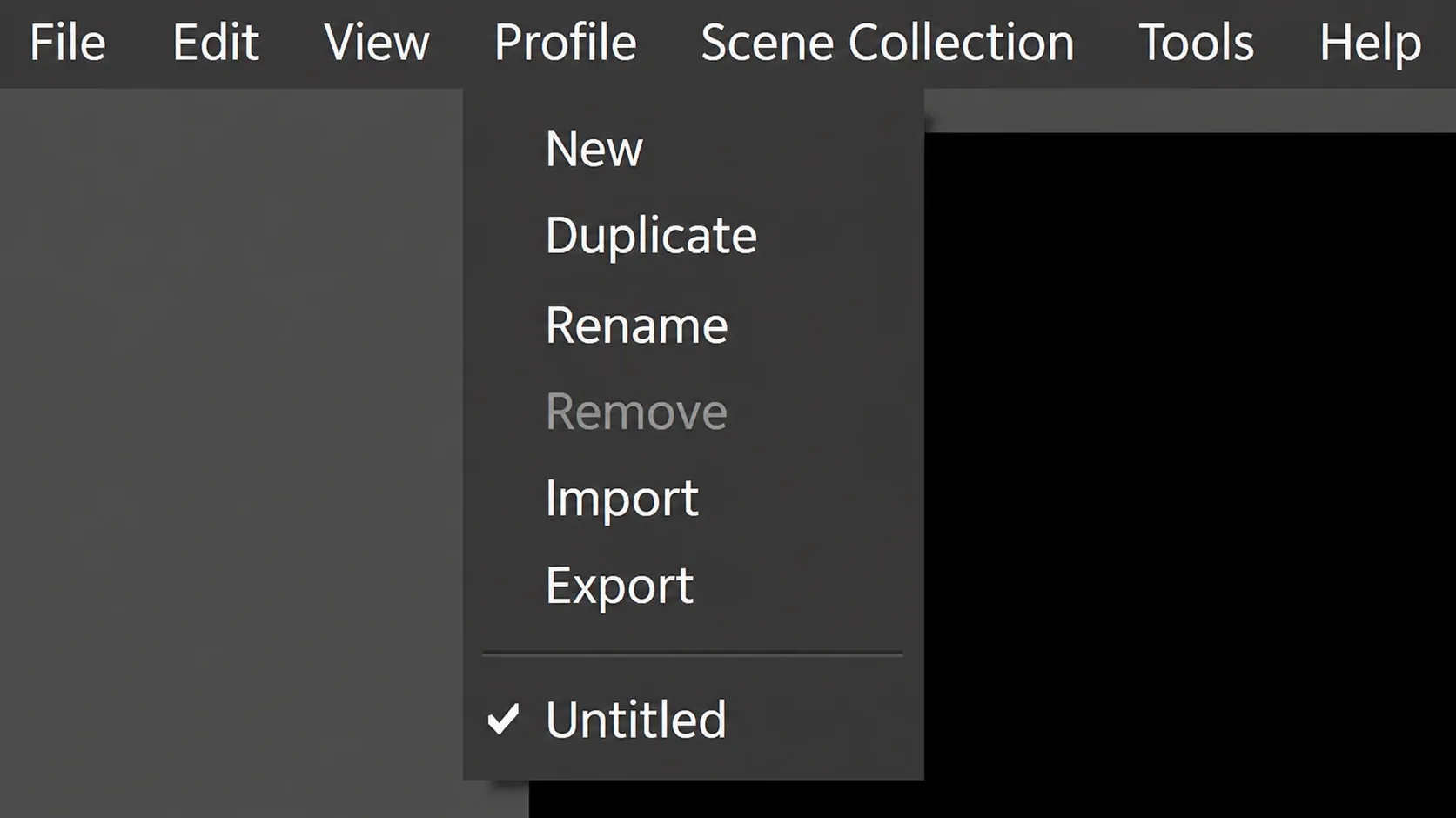
Use the Profile menu for output and service settings. OBS 27.2.4 saves this export as a folder. - Open Scene Collection and choose its own export command for each collection you need. The labels follow the same version split. Scene collections hold scenes, sources and global audio sources; they don't contain the output profile.
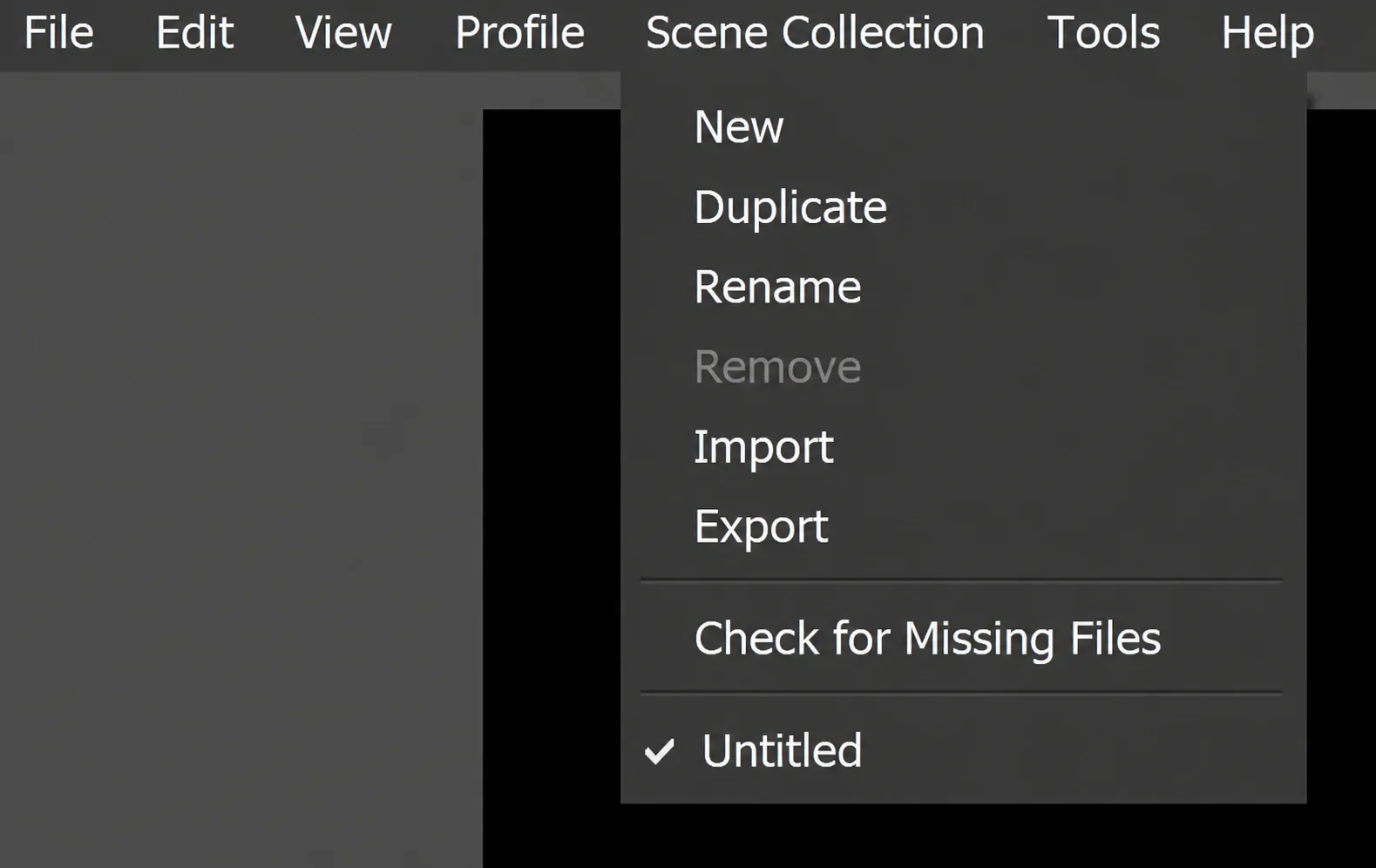
Use the Scene Collection menu for the scene and sources. Keep its referenced media with the backup. - Preserve referenced images, media and other external files, plus the compatible plugin installers or packages. Record which OBS build and architecture they belong to.
- In OBS, open File > Show Settings Folder to locate the active configuration. Close OBS, then copy that folder to a separate backup location. Keep this pre-change copy untouched while checking the other version.


Don't assume a configuration opened and saved by a newer OBS can be read back unchanged by 27.2.4. OBS 31 changed configuration handling and removed migrations from 28.1 and earlier; its notes suggest upgrading through 30.2 first. That is an upgrade bridge when the machine can run the intermediate and destination builds, rather than a guarantee of reverse compatibility.
For a separate Windows check, OBS portable mode can keep the application's configuration beside its extracted files. Extract the matching application ZIP to a new writable folder outside Program Files, put an empty portable_mode.txt in its root, and launch bin/64bit/obs64.exe for the x64 package. A ZIP without portable mode can still use the normal configuration, so don't open it against the working setup first and add the marker afterward.
This isolates configuration, not every system integration or plugin location, and referenced media doesn't become portable. Keep the working copy closed and test one OBS instance at a time. The portable-mode instructions cover Windows; they don't provide the same setup on Mac or Linux. Use the update and rollback procedure for the full replacement and recovery path.
Accept the build only after checking the saved output
Rehearse the workflow privately before using the build for a real session. Keep the scene and output settings comparable if you're investigating a regression; changing resolution, encoder and OBS version together won't isolate what helped.
- Confirm the launched version in About and select the intended profile and scene collection.
- Check every required capture source, filter, browser widget and controller. Verify that the intended picture reaches the preview and the intended audio reaches the mixer.
- Confirm the selected recording encoder is available, choose a writable output folder, then record movement and speech.
- Stop normally, select File > Show Recordings and play the finished file. Check the picture, sound and any separate tracks your workflow needs.
- If streaming is required, check the actual service login or connection and a permitted private test too. A local recording doesn't verify a current online service.
If the old build fails this check, close it before returning to the known working version and its matching pre-change configuration. Preserve any failed-test files separately; don't overwrite your only working backup. The screen-recording walkthrough helps trace a picture or sound problem after launch, while the setup guides cover the remaining installation choices.