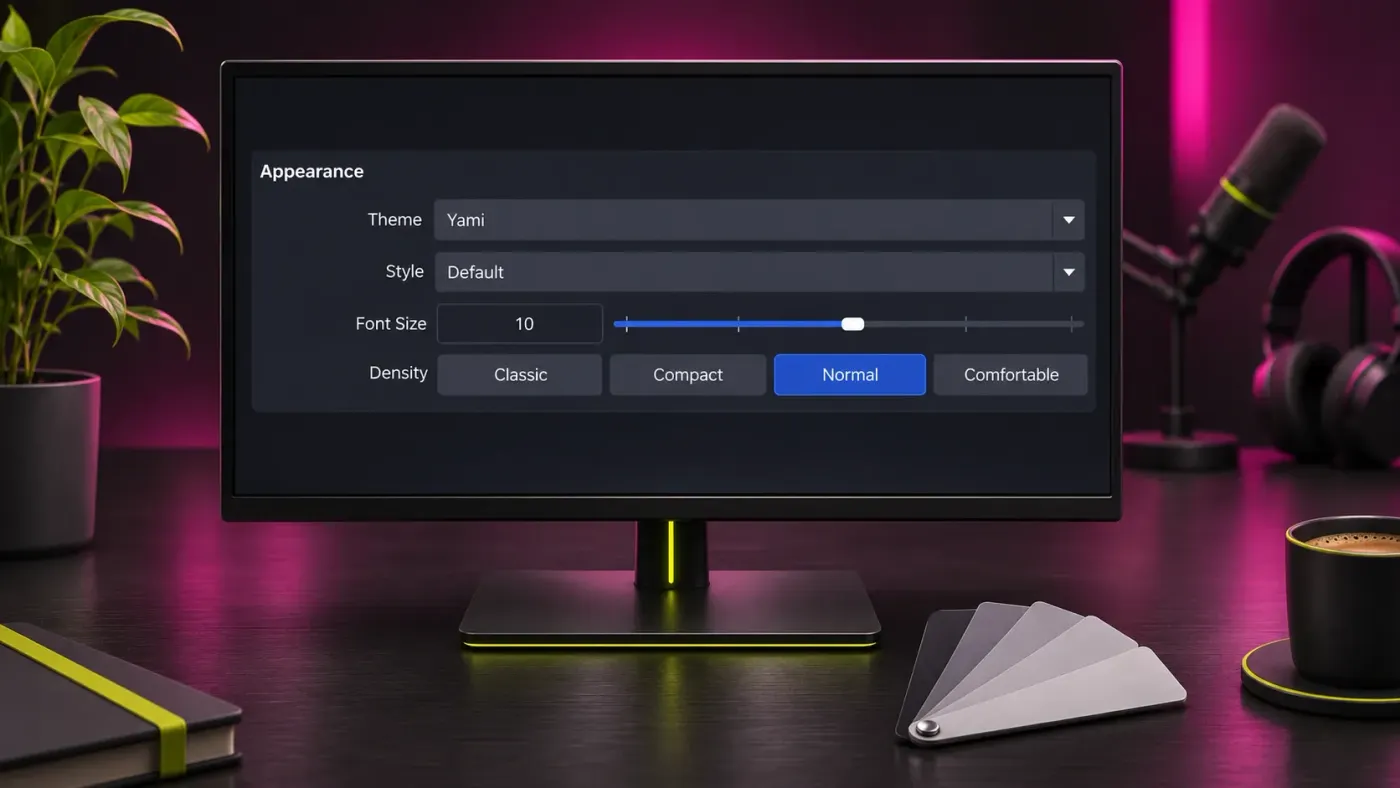
Change OBS themes in Settings > Appearance: choose a Theme, then a Style if that theme offers variants. This changes the controls you operate, not the graphics in your scene. I'd try a built-in Yami style before downloading a custom theme because readable controls and recognizable recording states matter more than matching a color palette.
For a custom theme, use a package compatible with your OBS version, put its theme files in the active user themes folder, restart OBS and select the correct base theme and style. Keep the previous setting and original package so you can reverse the change. The controls and file-loading behavior below are checked against OBS Studio 33.0.1.
Do you want to change OBS or what viewers see?
An interface theme changes the appearance of OBS windows, buttons, lists and other controls. An overlay is an image, animation, browser widget or other source inside the scene. A theme won't put a webcam border, alert or starting-soon screen into your stream.
This distinction matters when searching for “OBS themes.” The StreamElements theme catalog contains stream graphics; the OBS forum theme directory contains interface customizations. Choose the second route for OBS controls. For graphics in the actual picture, start with the scene-and-source workflow.
There is one capture-related exception: if you record a display or window that includes OBS itself, its visible interface can appear in that capture. Changing the interface still doesn't add an overlay; you're capturing the application window. Check the receiving picture rather than assuming the operator window is invisible.
Change a built-in theme or style first
- Finish any active broadcast or recording before experimenting with the operator interface. Note your current Theme, Style, Font Size and Density settings.
- Open Settings > Appearance. In Theme, select Yami for the built-in base used in this example.
- Open Style. Select Grey for a neutral dark palette, or compare another available style against the controls you need to read. Default is also a Yami style. For a light interface, keep Theme on Yami and choose Style: Light.
- If the selected style exposes the controls, adjust Font Size for readable text. Under Density, try Classic, Compact, Normal or Comfortable. Stop reducing spacing when neighboring controls become difficult to distinguish or click.
- Confirm with Apply or OK. Inspect the main window and a source's Properties and Filters, then reopen Appearance to confirm the saved selection.
Theme and Style are separate controls. A variant belongs under its base theme; it doesn't necessarily get a separate entry in Theme. The Appearance code builds the Style list from the selected base theme. Selecting a different base changes which variants are offered.
Some styles disable Font Size or Density and display an options warning. Those controls depend on the theme using OBS's font-scaling and padding variables. A disabled slider is therefore a compatibility clue, not proof that your settings are corrupted. If text size is your main problem, choose a style that supports the control before hunting for another package.

Older theme instructions often point to General. For the version covered here, use Appearance; the OBS 33.0.1 interface labels distinguish Theme, Style, Font Size and Density. Don't change encoder or canvas settings to solve an interface-color problem.
Choose a custom theme by compatibility and legibility
Use the community directory to find a candidate, then read that theme's own release notes and installation instructions. A high download count or a recent forum reply doesn't establish compatibility with your installed OBS build. Check the version named by the maintainer, the package format, required parent themes and any reported issues with controls you use.
I'd favor a maintained variant of a bundled base for a modest color change. The OBS theme-system documentation recommends extending Yami: a copied, independent base has to keep up with new widgets itself. A variant can inherit updated base definitions, although its own overrides can still become incompatible.
For a more specialized interface, Production Pro describes compact styles for live production. Its resource page also warns that the Streamlabs plugin can prevent the active stream button's color from changing. That's a reason to inspect the exact combination of theme and plugins you run, rather than selecting solely from a promotional picture.
Don't assume every dock in a theme screenshot comes with the theme. The same resource shows optional plugins alongside its styles. A theme can style existing controls; it doesn't supply those plugins' functions. If you need a new dock, treat that as a separate plugin installation and compatibility decision.
Understand the files before copying them
OBS's composable theme system, introduced in 30.2, distinguishes three files:
.obtdefines an OBS base theme..ovtdefines a variant, shown as a Style under its base. It must resolve its declared parent and any intermediate dependencies..ohasupplies a high-contrast adjustment layer. It isn't an ordinary standalone style to select from the dropdown.
A package may contain only a variant because its parent already ships with OBS. Another may require a separately supplied base. Follow the declared dependency rather than guessing from similar filenames: the loader matches internal theme IDs.
A standalone legacy .qss file is not a drop-in theme for OBS 33.0.1. That version's theme discovery scans .obt, .ovt and .oha files. If a download contains only an old QSS stylesheet, find a compatible release from its maintainer. Renaming the extension doesn't supply the metadata and dependencies a new-format theme needs.
Keep image and SVG asset folders with the package. Finding the theme in a list proves that its metadata was found, not that every icon loaded or every new control is styled correctly.
Find the active user themes folder
In OBS, choose File > Show Settings Folder, then open or create a folder named themes inside it. This is the most useful route for portable copies or installations with a relocated configuration. The menu action opens the active user configuration folder, rather than a guessed installation directory.

For standard locations, use the matching row below. These are user configuration paths, not the application's bundled themes directory.
| Installation | Default user themes folder | How to reach it |
|---|---|---|
| Windows | %APPDATA%\obs-studio\themes\ | Paste the path into File Explorer's address bar. Create only the final themes folder if it is missing. |
| macOS | ~/Library/Application Support/obs-studio/themes/ | In Finder, use Go > Go to Folder and paste the path. |
| Linux, non-Flatpak | $XDG_CONFIG_HOME/obs-studio/themes/, normally ~/.config/obs-studio/themes/ when XDG_CONFIG_HOME is unset | Use the configuration location for the OBS instance you actually launch. |
| Linux, Flatpak | ~/.var/app/com.obsproject.Studio/config/obs-studio/themes/ | Use the Flatpak configuration, not the native package's folder. |
The official theme-system folder list includes the separate Flatpak path. If Show Settings Folder leads elsewhere, use that active location. A theme copied into one OBS instance's configuration won't appear in another instance that reads a different folder.
Install the package without changing the working setup
- Open the active settings folder before quitting OBS. Keep the downloaded archive and note exactly which files and directories the package adds.
- Close OBS normally. Copy the existing
themesfolder to a backup location outside that folder; if there wasn't one, record that you're creating it. Back up any existing files before an intentional replacement. - Extract the package. Place its theme definition files directly inside
themes, preserving the asset directories they reference. If the archive includes a wrapper folder or a fulldata/obs-studio/themestree, copy the contents intended for the themes directory, not the entire wrapper. - Check that the required base and variants are present, with no extra
themes/themesnesting. This procedure uses theme files and assets; it doesn't require running a plugin installer or script just to change colors. - Start OBS again. Open Settings > Appearance, select the appropriate Theme, then its Style. Apply the selection and inspect the controls before resuming work.
The definition files belong at the top of that directory because OBS 33.0.1 scans files there without a recursive subfolder scan. Asset directories remain nested according to the package's paths. The theme system uses the theme: search prefix to find assets in bundled and user theme locations; flattening all image files into one directory can break those references.
If a filename already exists, pause and establish whether you're replacing an older release of the same package. Don't merge unrelated downloads over one another. Keep enough of the original folder structure to reverse just this installation.
When the theme is missing or looks broken
| What you see | Check first | Next action |
|---|---|---|
| No new entry in Theme | Did the package provide a variant rather than a base? | Select its base, then inspect Style. An OVT variant isn't a separate base-theme entry. |
| No new Style either | Active configuration, direct file placement, file format and required parent | Remove extra wrapper nesting, obtain missing dependencies and restart OBS. Use a compatible package instead of renaming QSS. |
| Some icons or images are missing | Asset folders and compatibility with the current widgets | Restore the package's directory structure. If the problem remains, switch to a bundled style and look for a maintained release. |
| Font Size or Density is disabled | Whether this style uses the corresponding appearance variables | Choose a supporting style. Reinstalling OBS isn't the first remedy for a style that doesn't expose those options. |
| Recording or streaming state is hard to identify | Contrast, labels and known plugin interactions | Return to the previous readable style before going live; don't rely on color alone to identify an active output. |
| The stream picture didn't acquire the new design | Whether you changed interface styling instead of scene sources | Add the required graphics to the scene. Changing the operator theme doesn't add viewer-facing assets. |
The loader removes themes with unresolved ancestors from the available set. Copying the same incomplete variant repeatedly won't solve a missing parent. Also check for duplicate releases: OBS identifies themes by metadata ID, so differently named files aren't necessarily distinct themes.
If the theme appears in Appearance but some icons went missing after you moved the OBS configuration, check where the theme assets still live. In the OBS 33.0.1 theme loader, discovery uses the active user configuration directory. Its theme resource path also reads the standard OBS themes folder and the built-in folder. Keep the theme’s resource directory with the structure supplied by its author and check those locations before reinstalling OBS.
A historical OBS forum discussion describes eye and lock controls appearing incorrectly in an older theme. That isn't evidence that your chosen release has the same defect, but it shows why a pretty main window alone is an incomplete compatibility check. Inspect the Sources list, mixer, output controls and dialogs you operate.
If a theme breaks after an OBS update, compare it with a bundled style before changing unrelated capture, audio or encoder settings. Keep the OBS version and theme release in your report to the maintainer; “the colors look wrong” gives them much less to work with than the affected control and state.
Restore a readable interface without resetting scenes
If Settings is usable, return to Appearance, select Theme: Yami and Style: Default or your previous known-good combination, restore readable Font Size and Density values, then apply. Close OBS before moving the unwanted package's files out of the active themes folder. Keep shared dependencies needed by other themes.
If the custom interface is too broken to use, quit OBS and move only the newly added package outside the themes directory. Restore any files that installation replaced from your backup. On the next start, OBS 33.0.1 falls back to a bundled theme if the configured theme ID no longer resolves; the exact fallback can depend on Windows high-contrast mode.
Moving files won't reset an oversized Font Size setting. If the interface remains unusable for that reason, close OBS and make a backup of user.ini in the same active settings folder. In its existing [Appearance] section, change only FontScale to 10 and Density to 1. These are the OBS 33.0.1 default configuration values; 10 is a scaling value, not a claim that the font is ten pixels. Keep other entries and sections intact, save, and reopen OBS.
Don't delete the whole settings folder to remove a theme. Appearance lives in the user configuration; switching a recording Profile isn't an appearance rollback. Your scenes and output settings are separate decisions, and a cosmetic problem doesn't justify rebuilding them. If OBS still fails with the new package removed, investigate that startup problem separately. The documented safe-mode parameter disables plugins, scripts and websockets; it isn't a promised theme reset.
Check the interface and the resulting picture
Use the finished layout at the window size you normally work in. Read source names, check visibility and lock states, open a source's Properties and Filters, and inspect mixer mute states and output controls. During a short local recording, verify that active and stopped states are distinguishable, then stop recording and reopen OBS to confirm the appearance persists.
In Sources, check that the eye and lock icons remain readable in both states. Those controls can look different after changing a theme, and they still control what you can see and move.

Play that saved file. Check that the scene contains the intended picture and sound, with no captured OBS window or unexpected interface around it. The basic OBS workflow follows the picture from source through scene to output; changing the application's colors should leave that route understandable. Keep the readable fallback available, and use the setup hub for changes that affect capture and output.